AIUsage:一站式管理所有 AI 订阅的 macOS 原生看板
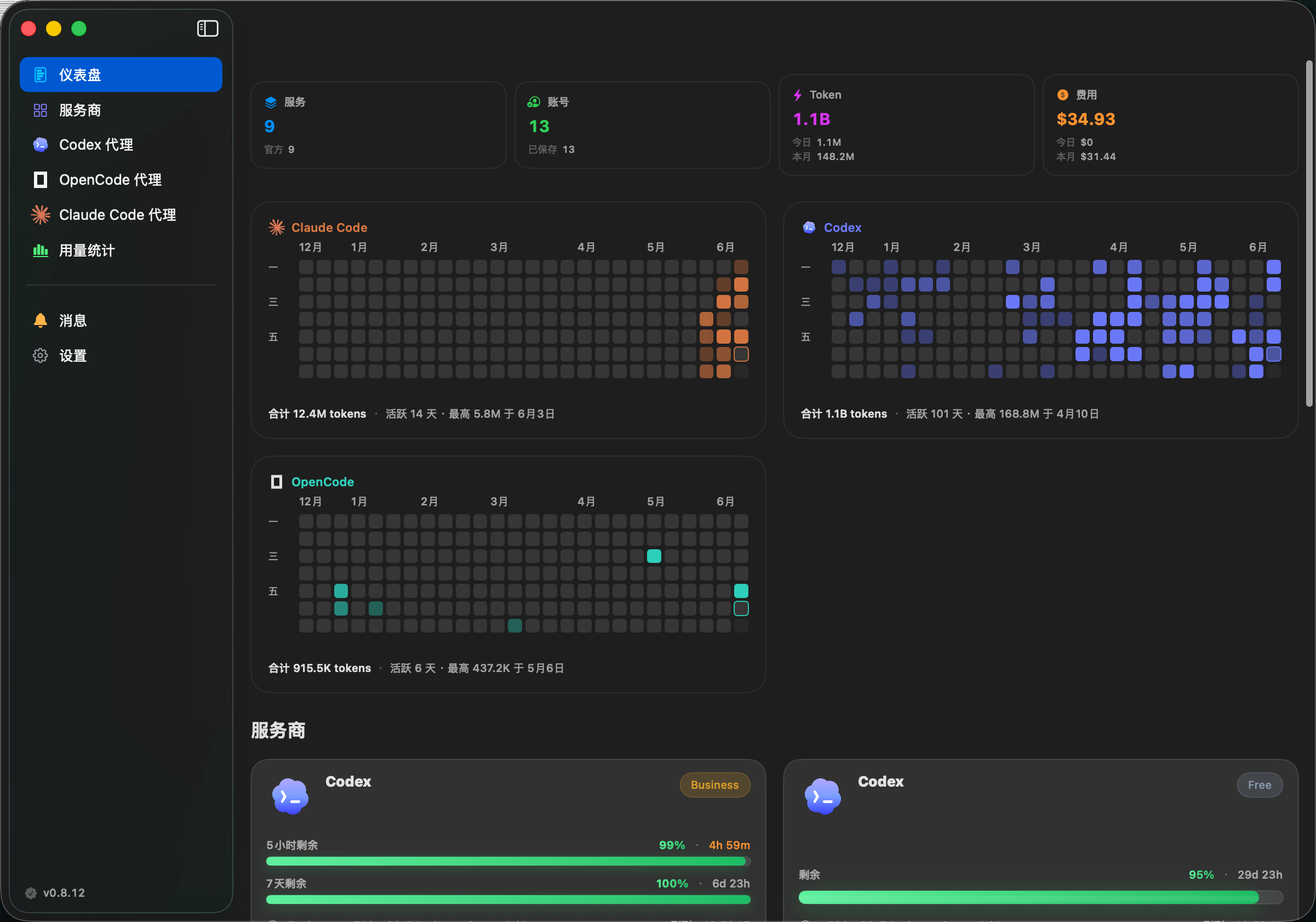
如果你像我一样,同时用好几个 AI 编程工具——Claude Code、Codex CLI、OpenCode——每个工具又有多个账号或者多个上游 API,你一定懂那种痛苦:
- 想让 Claude Code 跑 DeepSeek,得手动改配置格式
- Codex 切换订阅账号,要手编辑
~/.codex/config.toml - 各个平台的额度用了多少,花了多少钱,只能挨个登录去看
- 装了一大堆 MCP 服务器和技能,哪些是真的在用,哪些早已吃灰?
最近发现了一个开源项目 AIUsage,完美解决了这些痛点,忍不住分享给大家。
是什么?
AIUsage is a native macOS app (written in SwiftUI) that puts all your AI subscription quotas, costs, and accounts in one dashboard. It also includes three built-in proxies that let Claude Code, Codex, and OpenCode switch to any OpenAI-compatible model with one click.
It supports 12+ common AI programming services:
- Codex (OpenAI Codex CLI)
- GitHub Copilot
- Cursor
- Claude Code
- OpenCode
- Kimi, MiniMax, and more
Three things it does really well: keep all costs and quotas in one place, switch models with one click via proxy, and show you which tools you actually use.
Core features
1. Multi-account management, all costs in one place
The most basic and useful feature. Each provider supports multiple accounts, refreshes independently, and shows remaining quota with a colored progress bar.
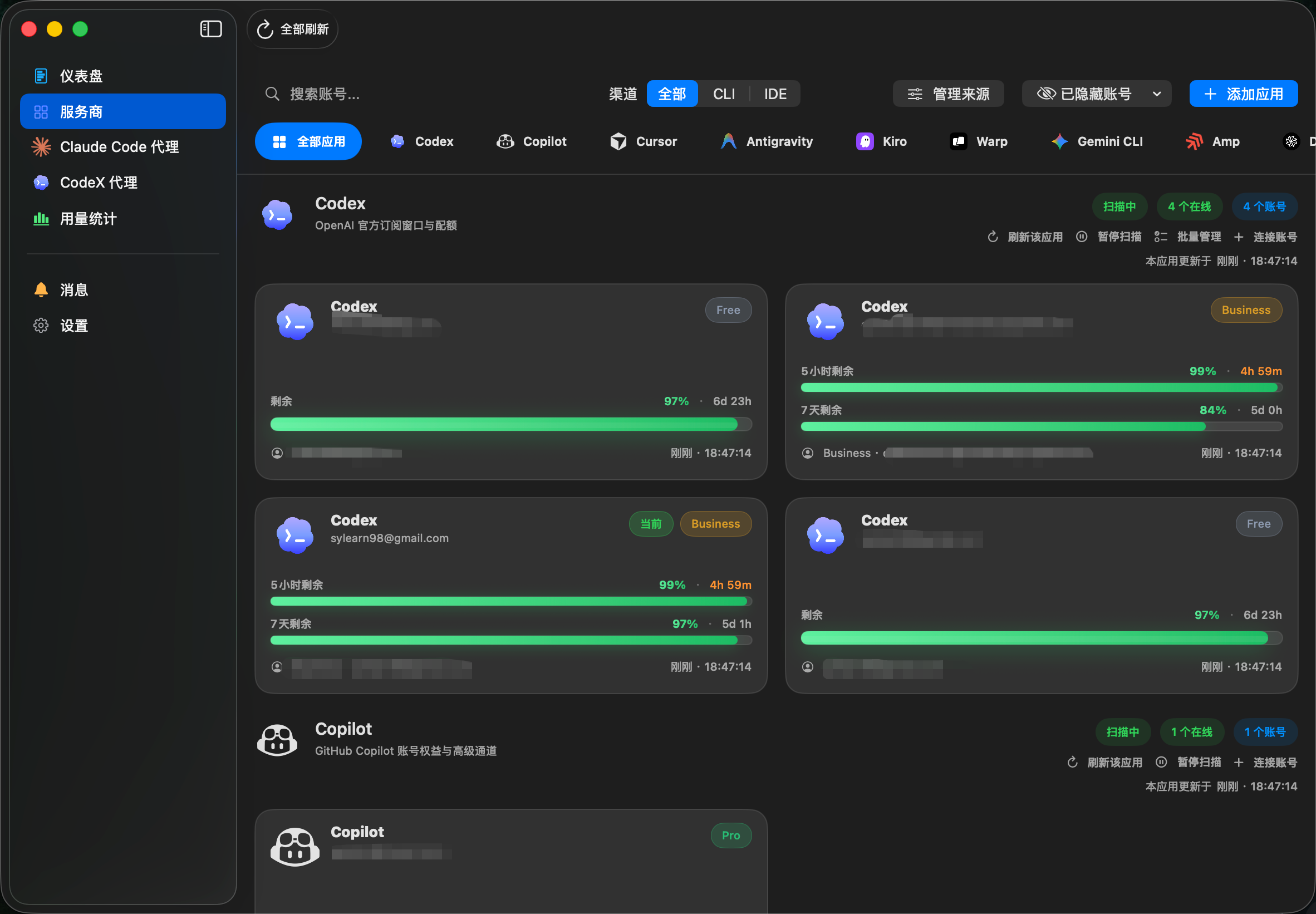
No more opening half a dozen websites just to check “how much quota do I have left this month”.
2. Claude Code proxy: run any model in Claude Code
This is probably the most wanted feature—you have a Claude Code subscription but sometimes want to try DeepSeek or a local Ollama model. What do you do?
AIUsage’s Claude Code proxy helps:
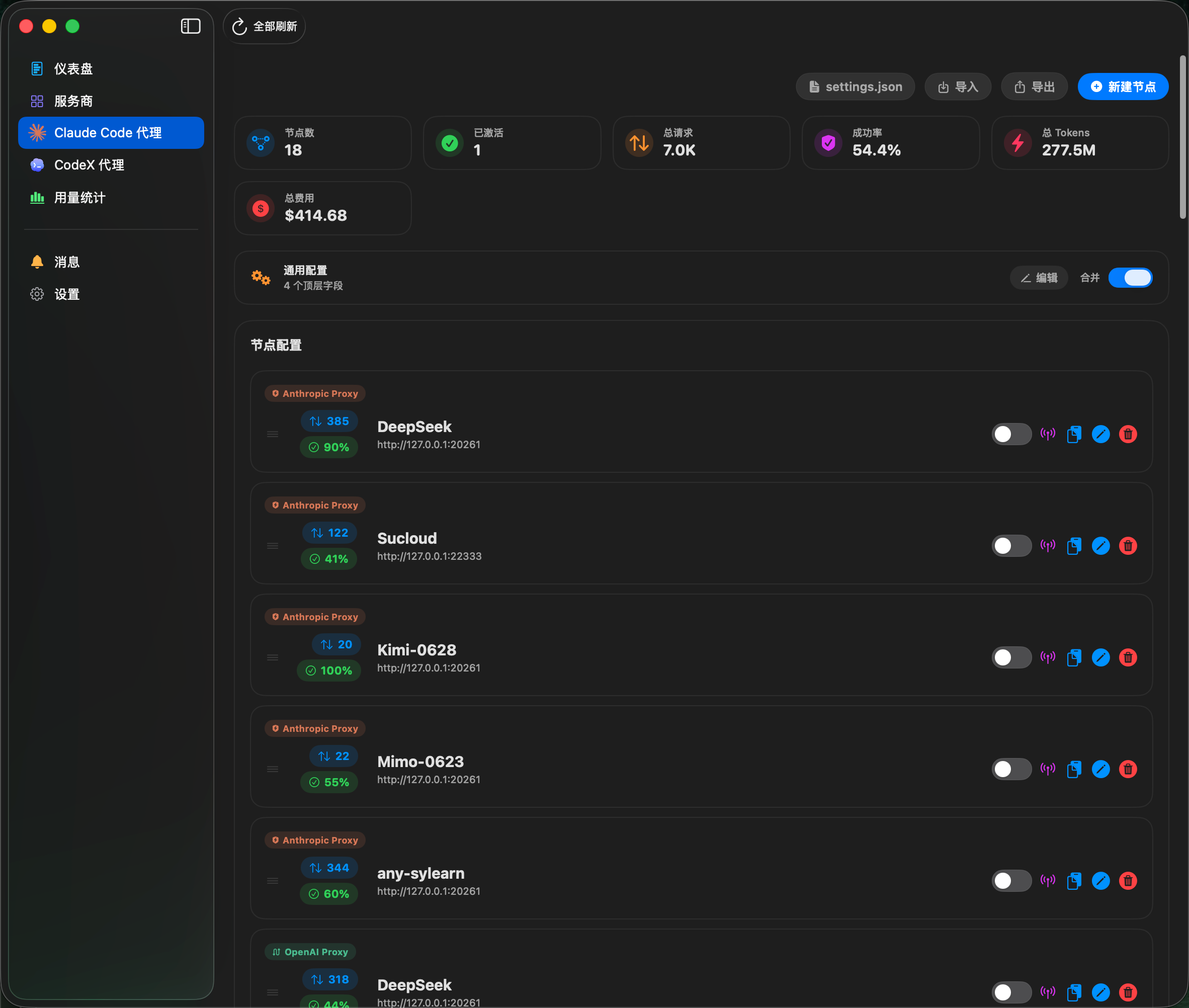
- OpenAI proxy mode: automatically converts Claude API format to OpenAI format, letting Claude Code CLI use any OpenAI-compatible upstream model
- Anthropic passthrough: if you’re already using Anthropic API, it transparently forwards requests and accurately tracks input/output/cache tokens so you know exactly how much you’re spending
Setup is ridiculously simple: open AIUsage → Claude Code Proxy → New Node → fill in the info → Activate. Done. Config writes automatically to ~/.claude/settings.json, you don’t need to touch the file.
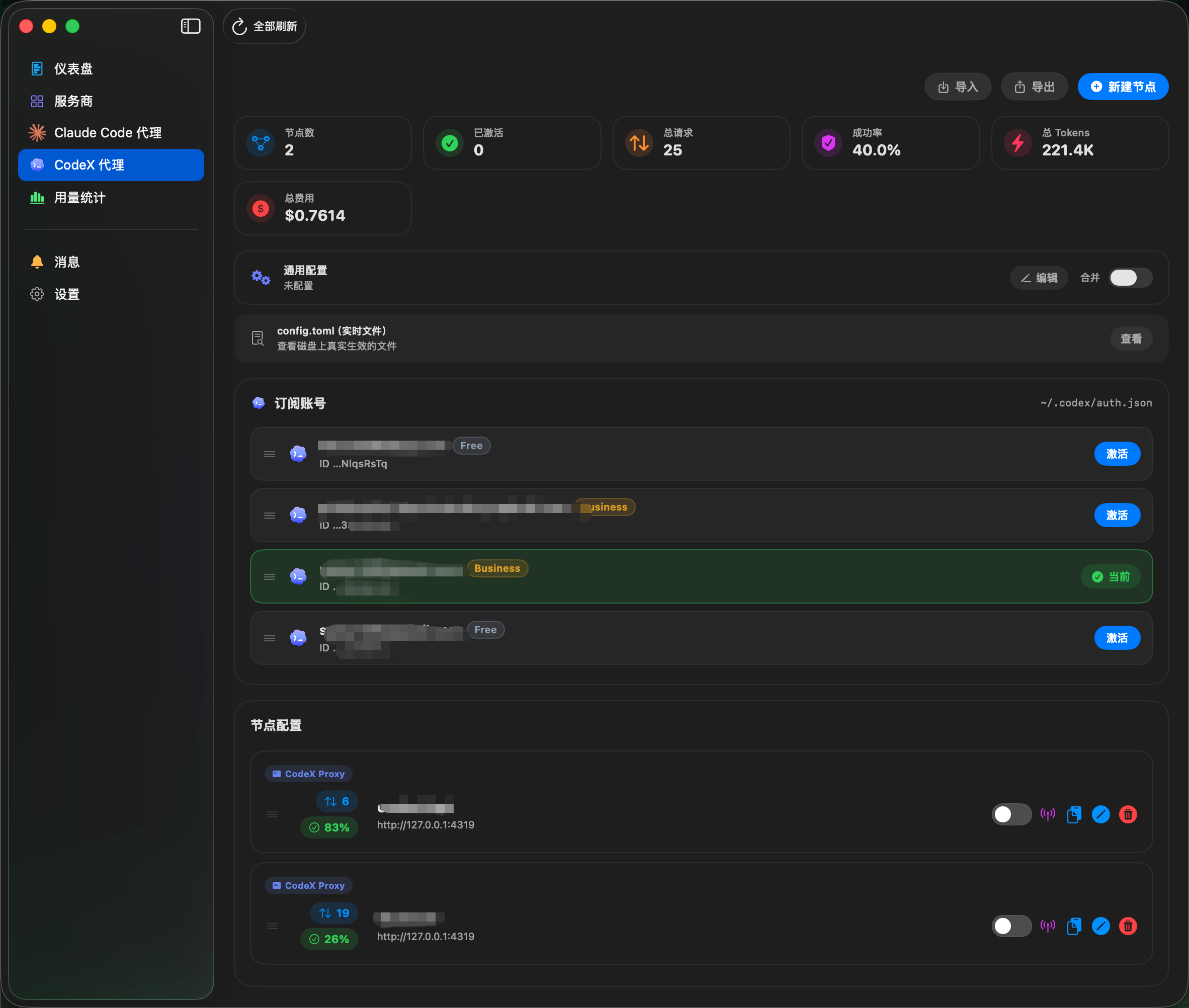
3. Codex / OpenCode proxy: switch upstream in one click
For Codex CLI and OpenCode, AIUsage has elegant solutions too:
Codex proxy:
- Points Codex CLI at any OpenAI-compatible upstream
- Unified switch between subscription accounts and API nodes—only one active at a time
- Smart config merge that preserves your existing custom settings
- One-click import from cc-switch
OpenCode proxy:
- No more hand-editing
opencode.json, switch upstreams in the GUI - Supports OpenAI, Anthropic, and Responses protocols
- Per-node pricing for accurate cost calculation
- Auto-takes over config on activate, fully restores it on deactivate
4. Global proxy: hot swap, zero restart
A more advanced approach: with global proxy mode, you give each tool a fixed local port, then swap the upstream behind it anytime in AIUsage. Your CLI never needs to restart—requests just route to the new node automatically.
This is super convenient for long-running development sessions. No disconnect/reconnect, changing models is just one click.
5. Call analytics: find your “zombie skills”
This is my favorite feature—AIUsage reads the local session logs from Claude Code, Codex, and OpenCode, and tells you:
- Which MCP servers get called the most
- Which skills you installed but never actually used
- Call volume trends over time
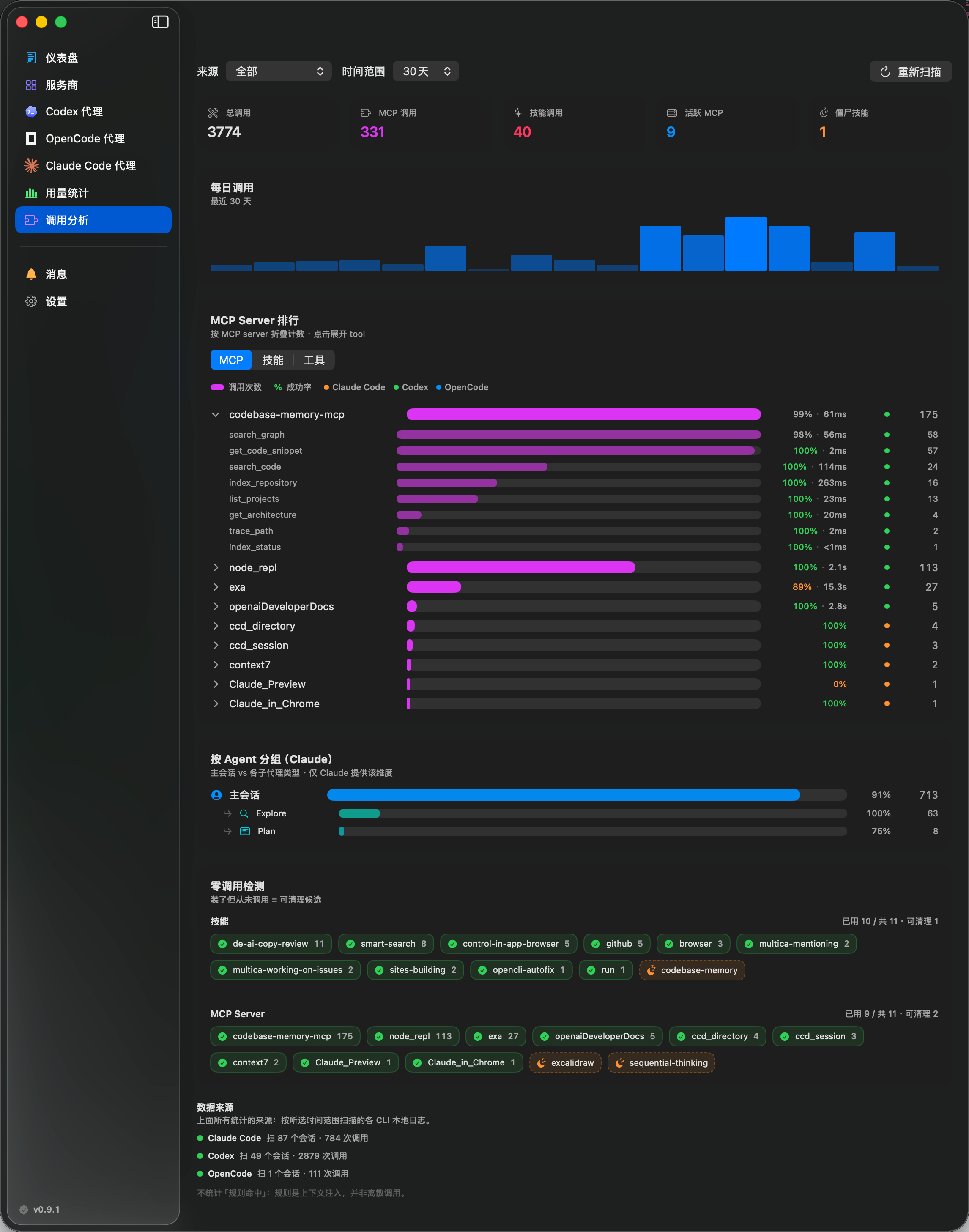
I ran it on my own Codex and found that almost half my installed skills had never been called once… I cleaned house, and Codex startup feels faster already.
This feature is read-only and non-intrusive. It only reads logs, doesn’t touch any of your config. Totally safe to use.
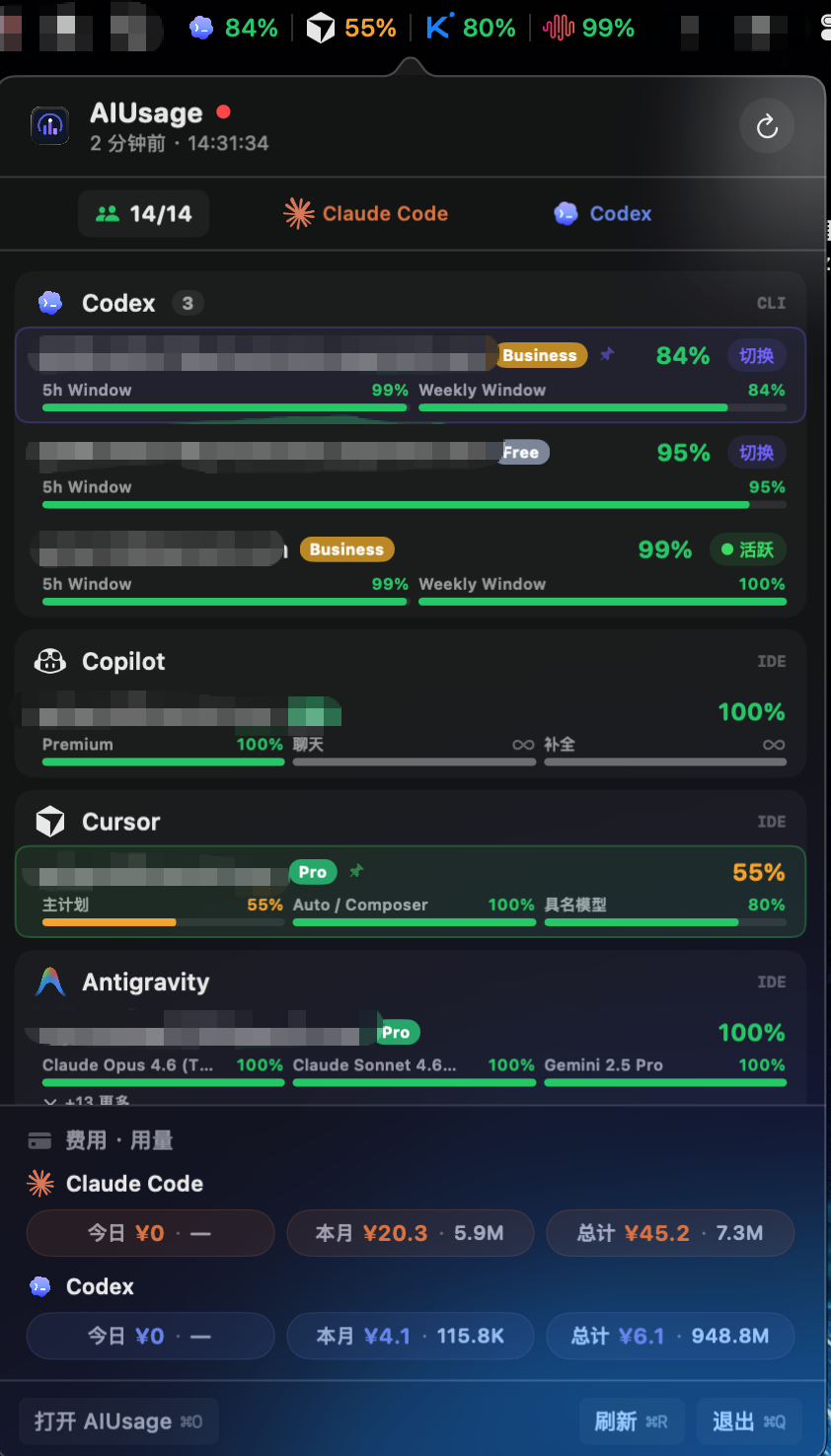
6. Menu bar quick view
You don’t even need to open the main window—the menu bar shows total cost and remaining quota, and lets you switch nodes directly. Super convenient.
Quick install and use
Install
- Download the latest
.dmgor.zipfrom GitHub Releases - Drag AIUsage to your Applications folder—done
- Open it and go. No compilation, no dependencies needed.
Five-minute start: configure Claude Code proxy for DeepSeek
Here’s a complete example to show how simple it is:
- Open AIUsage, go to “Claude Code Proxy”
- Click “+ New Node” in the top right
- Fill in the info:
- Name: DeepSeek
- Mode: OpenAI Proxy
- Base URL:
https://api.deepseek.com - API Key: your DeepSeek API Key
- Default model:
deepseek-chat
- Click “Activate”
- Done! Now open your terminal and run
claude—you’re already using DeepSeek.
Want to switch back to official Anthropic Claude? Just select your original node and click activate. Takes about ten seconds.
Who should use this?
If any of these apply to you, AIUsage will probably make you more productive:
✅ You use multiple AI programming CLI tools (Claude Code / Codex / OpenCode)
✅ You need to switch between multiple accounts or upstreams for the same tool
✅ You want to use DeepSeek/Ollama and other non-Anthropic models with Claude Code
✅ You want to clearly see how much each AI service is costing you per month
✅ You have lots of MCP/skills installed and want to clean up the unused “zombie tools”
If you only use the web version of ChatGPT, this tool probably isn’t for you—it’s mainly for people who use CLI coding tools.
Pros and cons
Pros:
- Native macOS app, fast startup, responsive, low energy usage
- Non-intrusive design—just proxying and managing, doesn’t break your existing config, you can stop using it anytime
- API keys stored in Keychain, secure and reliable
- Very focused functionality—it solves real pain points, no flashy useless features
- Open source and free, Apache 2.0 license
Limitations:
- Currently only supports macOS (it’s written in SwiftUI after all)
- You need to already be using Claude Code/Codex/OpenCode—if you only use GUI tools, you probably won’t find it useful
Closing thoughts
As someone who works with AI coding tools every day, my biggest takeaway after using AIUsage is—“someone should have built this a long time ago”.
When your AI subscriptions go from one to two to three, and you want to switch between different models, manually editing config gets old really fast. AIUsage gathers all that messy config and scattered usage data into one place, and makes the whole workflow much smoother.
Project homepage: https://github.com/sylearn/AIUsage
If this sounds useful, go give it a try. If you like it, don’t forget to star the project to support the author.
If you enjoy this kind of open source tool recommendation, follow my blog—I share useful AI development tools from time to time.